Add 2 more items to unlock your free mystery gift.
Complimentary item.
Total
Recommended add-on
Home/VictronConnect vs VRM: Which One Do You Actually Need for Battery Monitoring?
VictronConnect vs VRM: Which One Do You Actually Need for Battery Monitoring?
If you've bought a Victron battery monitor, solar charge controller, or inverter charger, you've probably seen two different app names: VictronConnect and VRM. Both let you see what's happening with your batteries, but they work in very different ways. This guide breaks down the differences, so you can pick the right tool for your setup—and get the most out of your Victron gear.
What is VictronConnect?
VictronConnect is a free app for your phone or tablet that connects directly to your Victron device over Bluetooth. It lets you see real-time data, change settings, and update firmware on a single device. You can also use it with a VE.Direct to USB cable for a wired connection on a computer.
Think of VictronConnect as the 'local' tool: it's for when you're physically near your system and want to check a specific device. For example, you might use VictronConnect to adjust the charge profile on your SmartSolar controller or to see the state of charge on your SmartShunt.
What is VRM (Victron Remote Management)?
VRM is a web-based portal and app that gives you a central dashboard for your entire Victron system, no matter how many devices you have. It shows aggregated data like battery state of charge, power flow, and energy history. You can access it from anywhere with an internet connection, thanks to the free VRM Portal.
VRM is the 'remote' tool. It's ideal for keeping an eye on your system while you're away, whether that's an RV in storage or a boat at the marina. It also provides historical trending and alerts, so you can spot problems before they become serious.
Key Differences at a Glance
Feature
VictronConnect
VRM Portal
Connection
Bluetooth or USB (local)
Internet (remote)
Device access
One device at a time
Entire system (multiple devices)
Real-time data
Yes, with low latency
Yes, but with a slight delay
Historical data
No (only current values)
Yes, with charts and graphs
Alerts
Notifications (if enabled)
Email or push notifications
Remote access
No
Yes, from anywhere
Firmware updates
Yes
No
Cost
Free
Free
Do You Need Both?
For most users, the answer is yes—and that's okay. They serve different purposes. You'll likely use VictronConnect for initial setup and fine-tuning, then rely on VRM for ongoing monitoring and peace of mind.
Here's a simple rule of thumb: if you're standing next to your battery, use VictronConnect. If you're anywhere else, use VRM.
How to Get Remote Monitoring with VRM
To use VRM, you need a way to get your Victron devices online. Options include:
Cerbo GX – Victron's communication hub that connects to your system and your Wi-Fi or Ethernet.
GX device (like the Color Control GX) – Similar to Cerbo, but all-in-one.
A Raspberry Pi with Venus OS – A budget-friendly DIY option for the tech-savvy.
Once connected, your system automatically uploads data to the VRM Portal, and you can view it from any browser or the VRM app.
Setting Up VictronConnect: A Quick Walkthrough
Download the VictronConnect app from the App Store or Google Play.
Enable Bluetooth on your phone, and turn on your Victron device.
Open the app and tap 'Scan'. Your device should appear in the list.
Select your device to see live data and access settings.
That's it! For wired connections, use a VE.Direct to USB cable and the VictronConnect desktop application.
Pair a Smart Battery Sense or other wireless sensor
See immediate voltage, current, and state of charge
Troubleshoot a device that isn't behaving correctly
When to Use VRM
Use VRM when you want to:
Check your system while away from home
See a complete picture of all charging sources (solar, alternator, AC)
Track daily energy production and consumption
Set up email alerts for low battery or high temperature
Share system access with an installer or remote helper
Real-World Example: RV with Solar and Shunt
Imagine you have a Victron SmartSolar charge controller and a SmartShunt in your RV. While parked and using the system, you open VictronConnect to adjust the solar controller's boost voltage for your lithium batteries. Then you head inside and, from your phone, you open the VRM app to check how much solar energy you've harvested today—and you're happy to see it's enough to keep your batteries topped off.
This is the best of both worlds: local control and remote oversight.
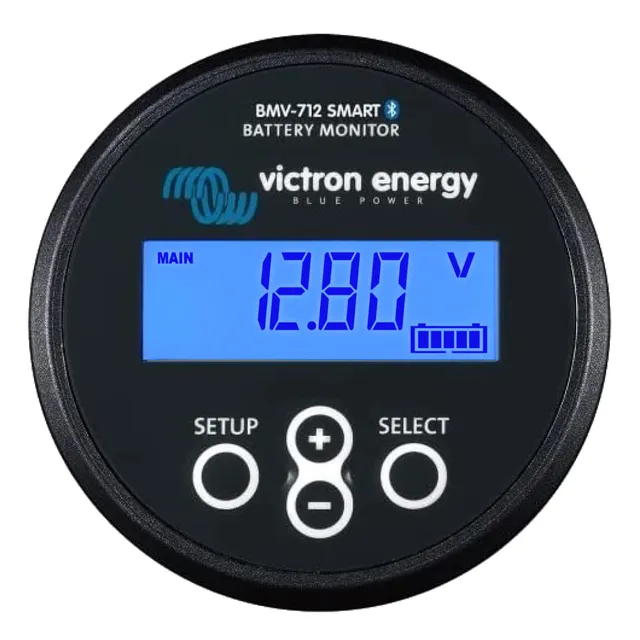
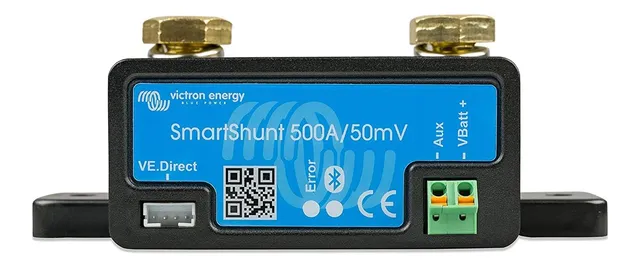
If you're looking to monitor your battery's state of charge accurately, a battery monitor with a shunt is essential. Victron offers two popular options: the SmartShunt and the BMV-712. Both work with VictronConnect and can feed data to VRM if you have a GX device. The BMV-712 adds a display, but the SmartShunt is a more budget-friendly choice with the same monitoring core.
Can You Use VictronConnect and VRM Together?
Absolutely. In fact, they complement each other. You can use VictronConnect to configure each device, and then, if you add a Cerbo GX, all those devices will report to VRM automatically. You don't have to choose one over the other.
Troubleshooting Common Issues
VictronConnect won't find my device
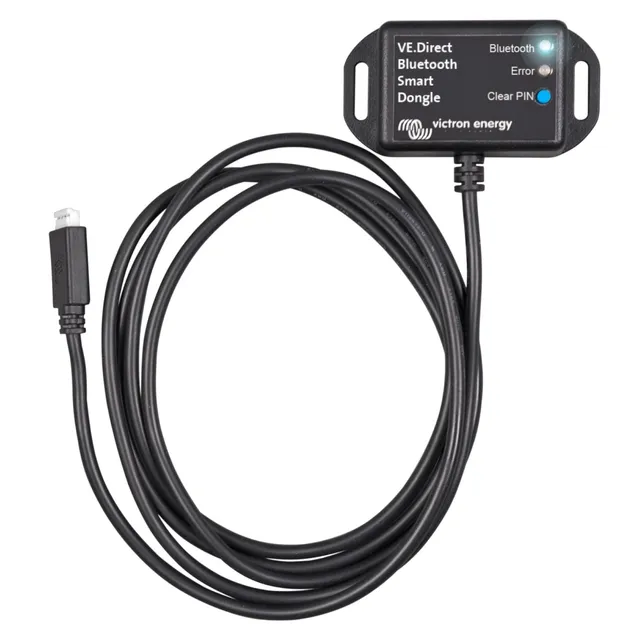
Make sure your device is powered on and within Bluetooth range (about 10 meters). Also check that your phone's Bluetooth is enabled and that the device isn't already connected to another phone. For VE.Direct devices, use the Smart dongle or a USB cable.
VRM not showing data
Ensure your Cerbo GX is connected to the internet and that your devices are properly linked via VE.Direct or VE.Bus cables. Check the VRM portal under 'Devices' to verify that each device is listed and reporting.
Final Thoughts
VictronConnect and VRM are not competitors—they're teammates. Use VictronConnect for hands-on control and setup, and use VRM for remote monitoring and historical insights. Together, they give you a complete picture of your power system, whether you're standing next to it or miles away.
Ready to upgrade your monitoring? Check out our top-rated battery monitors and communication interfaces below.